Samsung Photo Assist
Generative AI-driven Photo Editing
Role
Product Designer
Type
Company Project - Launched Service
Mobile, Tablet
Duration
7 months ( 2024.05- 2025.02 )
Team
2 Product Designers
2 Product Managers
10+ Engineers
Context
A Core Galaxy AI Experience
Galaxy AI brings generative AI into everyday mobile experiences, reaching more than 400 million Galaxy devices worldwide. Yet as Photo Assist continues to expand with new AI editing capabilities, users struggled to discover and start using them. I redesigned the experience to make AI editing easier to discover, understand, and use.

Pain Point
Users Dropped Off During Generative Editing
Generative Edit lets users remove, reposition, resize, and tilt objects with AI, yet many users dropped off before selecting an editing tool.

Problem Analysis
Barriers to Discovering & Using AI
Internal UT and user feedback revealed friction throughout the experience, from discovering AI editing features to getting started with them.
[ VOC ]
“I wasn’t sure how to use it at first.”
“I thought AI would do it for me, but I had to do more myself.”
“The available features weren’t clear.”
[ Internal UT ]
“The guidance was unclear for new AI users.”
“It didn’t really feel like an AI feature.”
“There wasn’t enough guidance on how to use the features.”
[ Problem Analysis ]
01. Low Discoverability - Available AI editing features weren’t clear on the Home screen.
02. Too Many Steps - AI editing required multiple selection steps.
Quick Experiment
What If Visibility Was the Only Problem?

1. Hypothesis
Making AI features visible and automating object selection could make editing easier.
2. Experiment
I surfaced Erase at the top and tested AI-powered automatic object selection.
3. Result
64% Click → 20% Generate
Making Erase more visible drove clicks, but automatic selection didn't translate into completed generations.
Automating everything isn't always the goal. For precise edits, users need control over what gets edited.

Final Design
Faster Control, Fewer Steps
I reduced the steps before editing could start, while keeping object selection in the user's hands.
1
Erase as the Default Tool
Erase was the most-used action, so I made it the default. Users can skip tool selection and start editing right away.
2
AI Tools Always Visible
Previously, AI tools appeared only after selecting an object. I surfaced all three upfront, so users can see what’s available and switch tools easily.
Before & After
Keep User Control, Simplify the Editing Process

Before :
Object Selection → Choose Erase or Reposition → Generate
AI editing tools were not immediately visible
After :
Object Selection → Generate
Make Erase the default and keep AI editing tools visible upfront.
Final Editing Flow
A Seamless Generative Edit Experience
Starting with Erase as the default, users can quickly switch to Reposition and Tilt and continue editing within a single, seamless flow.
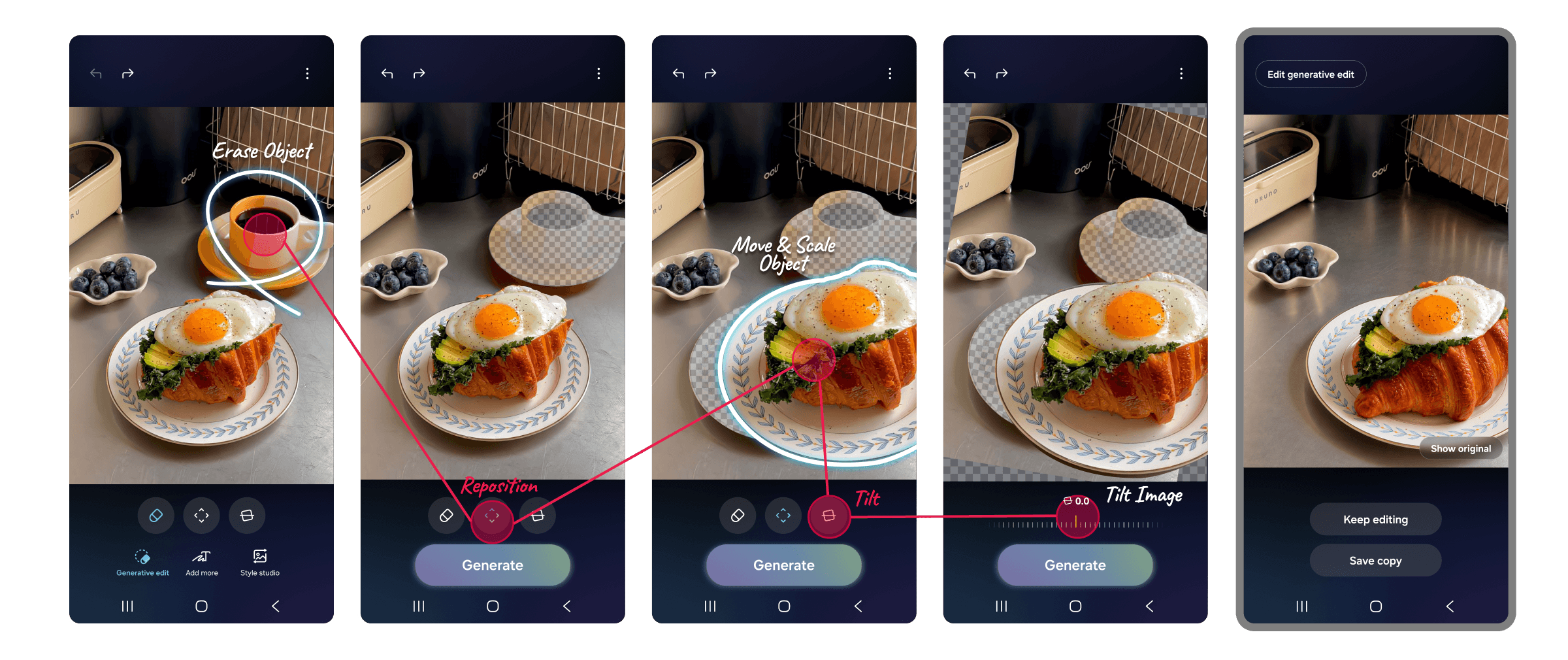
Erase the cup, reposition and resize the croissant sandwich, then adjust the image tilt within a seamless Generative Edit flow.
Expanded AI Tools
AI Tools at a Glance
I surfaced image generation and style tools in the toolbar for easier discovery.


Generate Images from Sketches
Style-based Image Generation
Outcome
Making Every Edit Easier to Discover and Complete
58%
Completion Rate
Raised Generative Edit's completion rate from 43% to 58% by exposing editing icons upfront and setting Erase as the default action. Reposition and Tilt saw similar gains, now that all three are equally visible.
+36%
Discovery Rate
Increased entry into Add More · Restyle by exposing them alongside Generative Edit, instead of hidden behind a swipe.
Next
@ 2026 Grace Song
Linkedln